
🎨
Fully Customizable
Configure every module with Starship-compatible TOML. Colors, symbols, thresholds — your statusline, your rules.
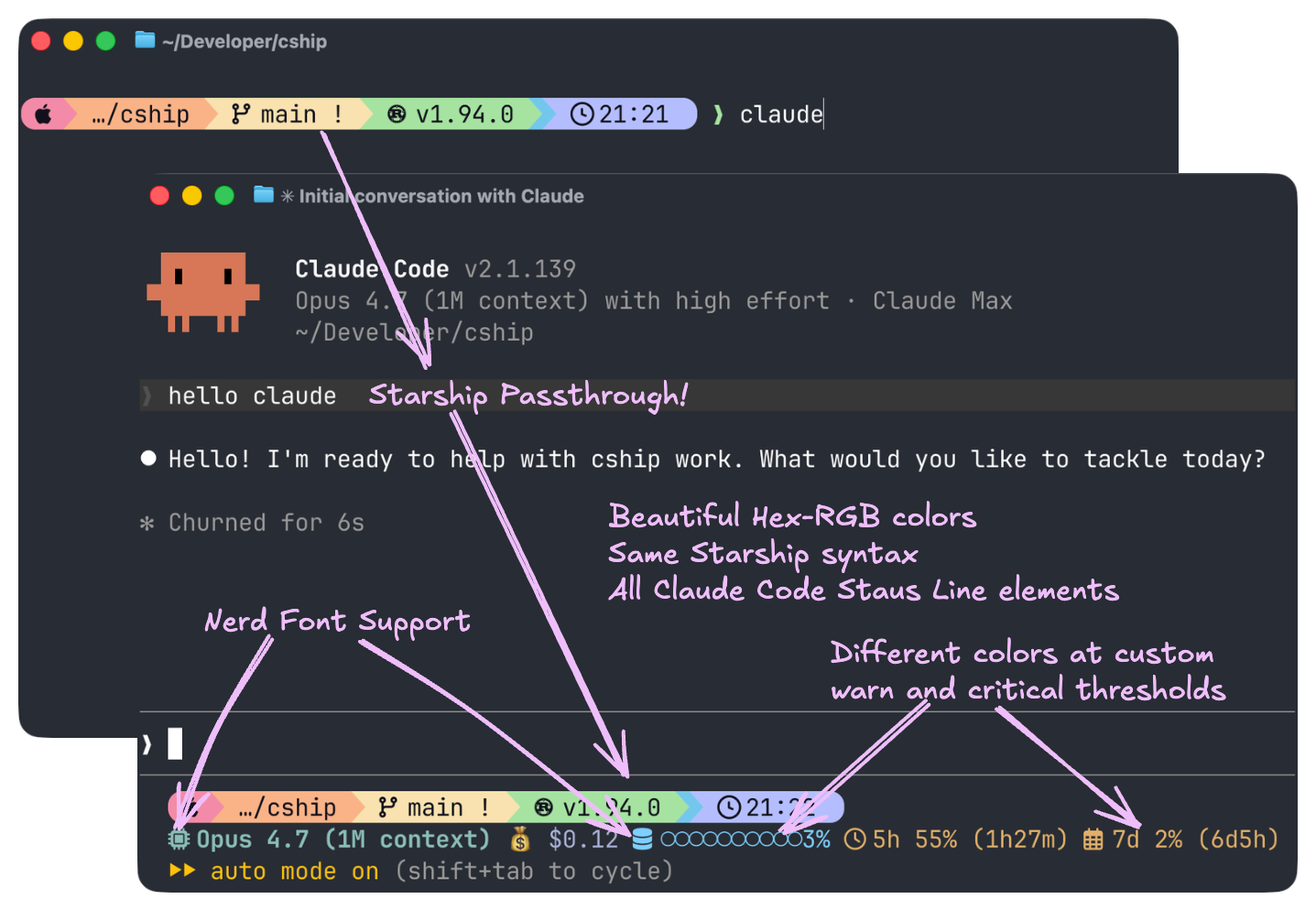
cship renders a live statusline for Claude Code sessions.
It reads Claude Code's session JSON from stdin and renders styled text using a simple TOML config file — the same format as Starship.
If you've already invested in Starship customization, CShip slots right in: add [cship.*] sections to your existing starship.toml (or use a dedicated ~/.config/cship.toml), reference native CShip modules alongside any Starship module, and get a unified statusline that speaks both languages.
curl -fsSL https://cship.dev/install.sh | bashAuto-detects your OS and architecture (macOS arm64/x86_64, Linux x86_64/aarch64), downloads the binary to ~/.local/bin/cship, creates a starter config at ~/.config/cship.toml, and wires the statusLine entry in ~/.claude/settings.json.
Optional dependencies (Starship for passthrough modules, and libsecret-tools on Linux for usage limits) are handled as follows:
--yes / -y — auto-installs all optional deps without prompting:curl -fsSL https://cship.dev/install.sh | bash -s -- --yesRUN, CI pipelines, no TTY) — optional deps are skipped automatically; the installer prints instructions for manual installation.Run this one-liner in PowerShell (5.1 or later):
irm https://cship.dev/install.ps1 | iexInstalls to %USERPROFILE%\.local\bin\cship.exe, writes config to %USERPROFILE%\.config\cship.toml, and registers the statusline in %USERPROFILE%\.claude\settings.json.
You can inspect the script before running: install.ps1
Requires the Rust toolchain.
cargo install cshipAfter installing with cargo on macOS / Linux, wire the statusline manually in ~/.claude/settings.json:
{
  "statusLine": { "type": "command", "command": "cship" }
}
After installing with cargo on Windows, wire the statusline manually in %APPDATA%\\Claude\\settings.json:
{
  "statusLine": { "type": "command", "command": "cship" }
}CShip supports Nerd Fonts — patched fonts that add thousands of icons your terminal can render as glyphs. With a Nerd Font active, you can use icon symbols as symbol values in any module config instead of plain text or emoji.
Install a Nerd Font:
cship.toml:[cship.model]
symbol = " " # nf-md-robot
[cship.context_bar]
symbol = " " # nf-oct-cpuFinding more glyphs
Browse nerdfonts.com/cheat-sheet to find any icon and paste it directly into your cship.toml.
→ The Showcase has a full Nerd Fonts config example.
Create ~/.config/cship.toml (on Windows: %USERPROFILE%\.config\cship.toml):
[cship]
lines = ["$cship.model  $cship.cost  $cship.context_bar"]

[cship.cost]
warn_threshold     = 2.0
warn_style         = "yellow"
critical_threshold = 5.0
critical_style     = "bold red"

[cship.context_bar]
width              = 10
warn_threshold     = 40.0
warn_style         = "yellow"
critical_threshold = 70.0
critical_style     = "bold red"
Open a Claude Code session — your statusline will show the model name, session cost (turning yellow at $2, red at $5), and a 10-character context bar (warming up at 40%, going critical at 70%).
→ Full Configuration Reference → Showcase — ready-to-use configs
Run cship explain to inspect what CShip sees from Claude Code's context JSON:
cship explainThis shows each module's current rendered value, the config file path in use, and any warnings about missing data or misconfiguration.
To check the installed binary version:
cship --version # or: cship -v